
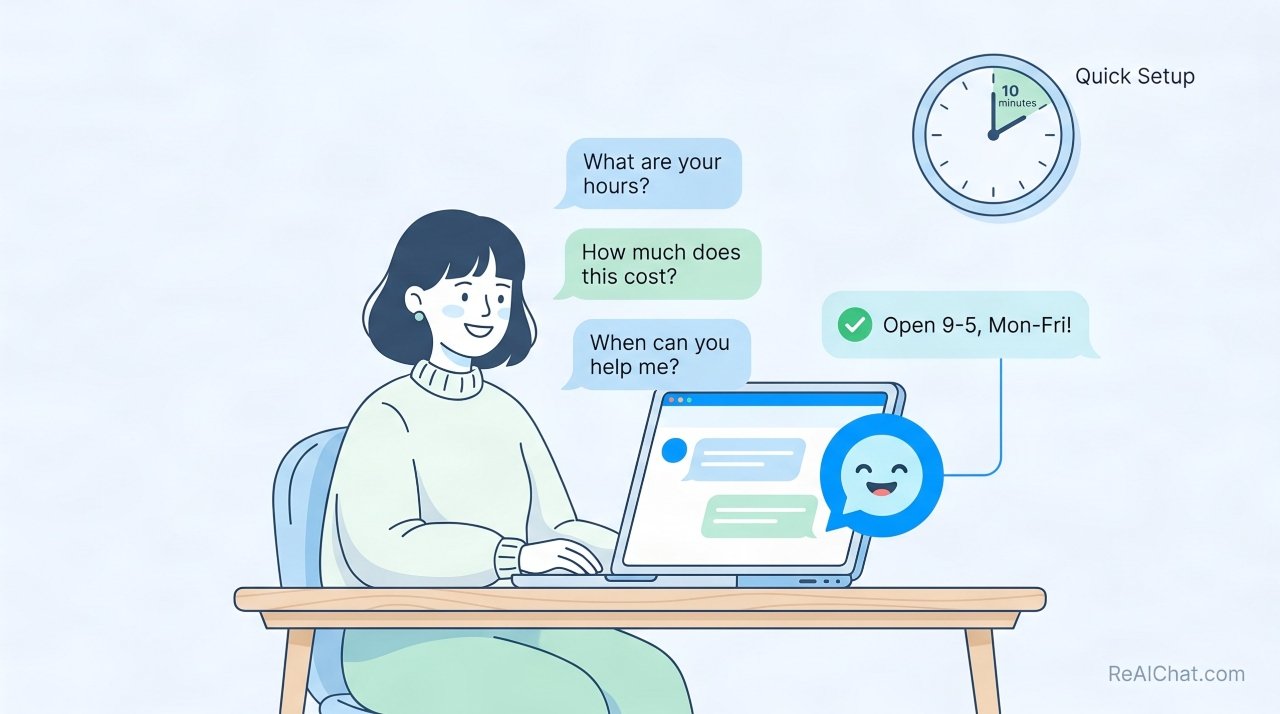
Sixty-three percent of businesses say adding chatbots to their websites increased customer engagement within the first month. Yet most small business owners think they need a developer or technical skills to set one up.
This article shows you exactly how to add a working AI chatbot to your website in 10 minutes, with no coding required. You’ll know which platforms work best, how to set it up step by step, and what mistakes to avoid so your chatbot actually helps your customers instead of frustrating them.
Who This is For
You’re a small business owner, freelancer, or marketing person running a website. Right now, you’re probably handling customer questions through email or messages, and you’re losing potential sales because people reach out when you’re not available. You’ve heard about chatbots but assumed they were too complicated, too expensive, or only for big companies with technical teams.
This article is for you. You need a solution that’s fast to set up, doesn’t require hiring someone, and actually works. The good news: this technology has gotten so much simpler in the last two years that you can genuinely have a chatbot live on your site before lunch. You don’t need to understand how AI works. You just need to follow a process.
Core Context or Background
A chatbot is software that talks to your website visitors and answers their questions automatically. When someone lands on your site at 2 a.m., a chatbot can greet them, answer common questions about your products or services, and collect their contact information if they want to talk to you later. The AI learns from the conversations, so it gets better at answering questions over time. If you want to understand the technical side of how AI chatbots learn from conversations, IBM has a good breakdown, but you don’t need to know this to use one.
The reason this matters to you: visitors leave websites when they can’t get an immediate answer. Studies show that 70 percent of people expect a response within five minutes. Before chatbots, you had to hire customer service staff or build complex automated systems. Now, modern AI chatbots handle this for you with just a few minutes of setup.
There are two main types of chatbots. Rule-based chatbots follow a script you write (like a flowchart). AI-powered chatbots, also called generative AI chatbots, actually understand what people are asking and write natural responses. The AI chatbots are easier to set up and require less customization from you because they don’t need detailed scripts. You just tell them what your business does, and they answer questions based on that information.
Main Content
Pick the Right Chatbot Platform for Your Needs
Your first decision is which chatbot platform to use. The platform matters because some are designed for simple setups while others expect more technical knowledge. Some charge per conversation, others charge a monthly fee.
The best platforms for fast setup are ones that don’t require coding. Look for platforms that offer templates, drag-and-drop builders, or have AI that learns directly from your website content. Platforms like Intercom, Drift, and Tidio let you start free and add more features as you grow. According to consumer preference data for chatbot support, customers now expect this kind of availability, so you’re solving a real need. Others like Chatbase and ChatGPT integration services (like Zapier) let you build a chatbot from a document or webpage text.
A good test: can you add the chatbot in under 10 minutes? If the platform has a free trial that doesn’t require a credit card, try it first. Watch a three-minute setup video. If you get stuck, pick a different platform. Your time is valuable. The right platform should feel intuitive within seconds.
Connect Your Chatbot to Your Website
Once you’ve picked a platform, adding it to your website is actually the simplest part. Most chatbot platforms give you a small piece of code called a script or widget. You paste this code into your website’s HTML, and the chatbot appears in a corner of your site.
If you use website builders like WordPress, Wix, Squarespace, or Shopify, most chatbot platforms have direct integrations. This means you don’t paste code at all. You just click “connect to Shopify” or “integrate with WordPress,” and the platform handles the rest.
The hardest part isn’t technical. It’s finding where to paste the code if you’re using custom HTML. If your website was built by a developer or agency, call them or send a message asking for access to the website footer or header code. It takes five minutes to add. If you built your website yourself and don’t remember where the code goes, try contacting the website builder’s customer support. They’ve helped thousands of people with this.
Train Your Chatbot with Your Business Information
Here’s where the actual work happens, though it’s not complicated. You need to tell the chatbot about your business. The more specific information you provide, the better it answers questions.
Add information like your business hours, location, pricing, return policy, what services or products you offer, and common questions customers ask. Most platforms have a text box where you paste this information, or you can upload a document or webpage URL. The AI reads it and uses that information to answer customer questions.
Some platforms let you upload files (PDFs, your website content, previous customer service emails). This is actually valuable because your chatbot learns from the exact language you use. If you’ve been answering customer emails the same way for years, uploading three or four example emails teaches the chatbot your tone and style.
Spend 20 to 30 minutes gathering this information. Write it down or copy it into a simple document. Then paste it into your chatbot platform. The AI does the rest.
Test Before Going Live
Before your chatbot talks to real customers, test it. Ask it the same questions your real customers ask. Does it answer accurately? Does it sound like your business? If it gives wrong information, add more details to your business information.
This step prevents embarrassment. I’ve seen chatbots tell customers a business is open when they’re actually closed, or quote wrong prices. These mistakes hurt your reputation and waste both your time and the customer’s time. Five minutes of testing saves weeks of frustration.
Test questions should include things like: What are your hours? How much does X cost? What’s your return policy? How do I contact someone? If the chatbot can’t answer, that’s okay. You can set it up to say “Let me connect you with someone who can help” and collect the customer’s contact information.
Decide Where the Chatbot Should Appear
Your chatbot doesn’t have to appear everywhere on your website. You can choose specific pages. Many businesses put it on the homepage and product pages. Some put it only on the contact page or pricing page.
Think about where customers get confused. If you sell products and most people ask about shipping, put the chatbot on product pages. If you run a service business and people ask about pricing before calling, put it on your pricing page. You can always add it to more pages later.
Connect It to Your Email or Messaging System
When a visitor talks to your chatbot and then asks to speak with you, the chatbot should send you a notification. Most platforms send an email or slack message with what the customer said. Some let you reply through the platform.
This connection is important because you don’t want to miss a lead. Test it yourself. Talk to your own chatbot and request a conversation with a human. Did you get notified? If not, check your settings in the platform.
What Most Articles Get Wrong or Leave Out
Most articles tell you how to add a chatbot but skip something critical: you need a backup plan for when the chatbot can’t answer.
Real example: A clothing retailer set up a chatbot to answer product questions. The chatbot worked great for standard questions like “What size is this shirt?” But one customer asked about a specific order status, and the chatbot couldn’t help. The chatbot had no clear way to hand off to a human, so the customer gave up and left. That’s a lost sale.
The fix is simple. When adding your business information to the chatbot, include instructions for what happens next if the chatbot can’t help. Write something like: “If I can’t answer your question, I’ll collect your email, and our team will get back to you within two hours.” Then make sure those customer handoff requests actually reach you and you respond fast. A chatbot that can’t hand off to humans when needed creates more problems than it solves.
How to take Action
Start here: pick one chatbot platform and sign up for a free trial today. Don’t overthink this choice. Pick one of the platforms mentioned earlier that offers free setup. Intercom, Tidio, and Chatbase all have free tiers with no credit card required.
Next, watch the platform’s three-minute setup video. Most platforms have these. Then spend 20 minutes writing down your business info: hours, pricing, top five customer questions, and your core services or products. Paste this into the chatbot platform’s training area.
Then test it. Ask yourself five questions your customers actually ask. Fix anything that’s wrong by adding more information to the platform. Set up the handoff to your email so when someone wants to talk to you, you get notified.
Finally, add it to your website. If your website uses WordPress or Shopify, use the direct integration. If it’s custom HTML, copy the chatbot code and paste it into your website footer. That’s it. You now have a chatbot handling customer conversations 24/7. Set a reminder to check in on it once a week and improve it based on what questions customers are asking. Connect your chatbot metrics to Google Analytics integration best practices so you can track how many conversations happen and which questions come up most.
Conclusion
Adding an AI chatbot to your website is not complicated if you use the right platform and follow the right steps. The entire process takes under 10 minutes of actual setup time, plus 20 minutes of writing down your business information. Your chatbot starts answering customer questions immediately, which means more leads and fewer lost sales from people contacting you at inconvenient times.
Stop overthinking this. Pick a platform, try it free, and add it to your website today. If it doesn’t work perfectly the first week, adjust it. Every conversation teaches it something new. Start with Tidio or Intercom’s free tier and set it up during your next coffee break.